
This is the universal build of Epson Setting Assistant 2.1.1. It contains native libraries for every CPU architecture (arm64-v8a, armeabi-v7a, x86, x86_64), so it installs on any Android device. The trade-off is size — it's larger than per-architecture variants. Pick this one if you're unsure which CPU your phone has, or if you plan to share the APK with multiple devices.
File size: 106.0 MB • Min Android: 30 • Target Android: 35 • Version code: 69 • Framework: Native (Java/Kotlin) • Permissions: 13
Screenshots
File Information
| Package Name | com.epson.projector.settingassistant |
|---|---|
| Version Name | 2.1.1 |
| Version Code | 69 |
| Architecture | Universal |
| Min Android Version | Android 30 (API 35) |
| Main Activity | com.epson.projector.settingassistant.MainActivity |
| Framework | Native (Java/Kotlin) |
| File Size | 105.97 MB |
| Signature (SHA1) | C2506B5ABACD0B7FCAB247ECFA0D8EFC1AF2AFF1 |
| File Hash (SHA256) | 1778131a9997ac4bca0b34c154d5f51e891274c423b972e67a647dbb23fad6ae |
What's New
Minor bug fixes
App Description
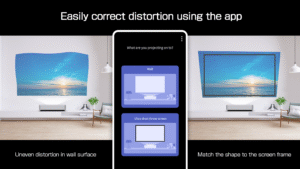
Epson Setting Assistant is an app that automatically corrects the shape of a projected image by using your camera.
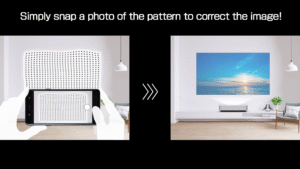
By taking a shot of the projected pattern, the app automatically corrects distortion in the projected image and adjusts its shape to match the screen.
[Main Features]
1) Shape correction
The app adjusts the image to a rectangular shape or aligns it with a frame, such as a projector screen.
2) Unevenness correction
The app detects small surface irregularities, such as on a wall, and corrects distortion in the projected image.
[For Home Projector (EH Series) Users: Using the App]
Make sure your Android device and the projector are connected to the same network.
1. Select [Installation] ([Installation] > [Geometry Correction Wizard]) from the projector's menu.
2. Open this app on your Android device and select [Home] as the projector type to automatically connect to the projector.
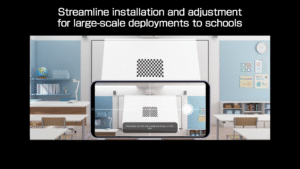
3. Follow the on-screen instructions to take a shot of the projected pattern using the camera in the app, and the corrections will be completed automatically.
[For Business Projector (EB Series) Users: Using the App]
Make sure the [Wireless LAN Power] setting is set to [On] in the projector‘s [Management] menu.
1. Select [Installation] > [Connect to Setting Assistant] from the projector's menu to project a QR code.
2. Open this app on your Android device, select [Business] as the projector's type, and then scan the QR code to automatically connect to the projector.
3. Follow the on-screen instructions to take a shot of the projected pattern using the camera in the app, and the corrections will be completed automatically.
[Supported Projectors]
Visit
support.epson.net/projector_appinfo/setting_assistant/en/
for details.
Depending on your projector model, some features may not be available.
[Notes for use]
Depending on your environment, such as a curved projection surface or wallpaper with rough textures or patterns, automatic correction using the app may not be available. In these situations, please correct the image shape from the projector's menu.
Depending on your smartphone/tablet, the Wi-Fi settings may prevent you from temporarily connecting to the projector. Turn your Wi-Fi off and then on again and try again.
For detailed important points, visit
download2.ebz.epson.net/sec_pubs_visual/apps/setting_assistant/210/EN/index.html
.
You can also check these from the [Online support guide] in the menu at the top right of the app.
Images used here are for illustrative purposes only. The actual images may differ.
We welcome any feedback you have that could help us to improve this app. You can contact us through "Developer contact". Please note that we cannot reply to individual inquiries. For inquiries regarding personal information, please contact your regional branch described in the Privacy Statement.
[App Permissions]
To use the app, the following permissions are required.
[Required] Camera
For capturing correction patterns or QR codes for connection.
By taking a shot of the projected pattern, the app automatically corrects distortion in the projected image and adjusts its shape to match the screen.
[Main Features]
1) Shape correction
The app adjusts the image to a rectangular shape or aligns it with a frame, such as a projector screen.
2) Unevenness correction
The app detects small surface irregularities, such as on a wall, and corrects distortion in the projected image.
[For Home Projector (EH Series) Users: Using the App]
Make sure your Android device and the projector are connected to the same network.
1. Select [Installation] ([Installation] > [Geometry Correction Wizard]) from the projector's menu.
2. Open this app on your Android device and select [Home] as the projector type to automatically connect to the projector.
3. Follow the on-screen instructions to take a shot of the projected pattern using the camera in the app, and the corrections will be completed automatically.
[For Business Projector (EB Series) Users: Using the App]
Make sure the [Wireless LAN Power] setting is set to [On] in the projector‘s [Management] menu.
1. Select [Installation] > [Connect to Setting Assistant] from the projector's menu to project a QR code.
2. Open this app on your Android device, select [Business] as the projector's type, and then scan the QR code to automatically connect to the projector.
3. Follow the on-screen instructions to take a shot of the projected pattern using the camera in the app, and the corrections will be completed automatically.
[Supported Projectors]
Visit
support.epson.net/projector_appinfo/setting_assistant/en/
for details.
Depending on your projector model, some features may not be available.
[Notes for use]
Depending on your environment, such as a curved projection surface or wallpaper with rough textures or patterns, automatic correction using the app may not be available. In these situations, please correct the image shape from the projector's menu.
Depending on your smartphone/tablet, the Wi-Fi settings may prevent you from temporarily connecting to the projector. Turn your Wi-Fi off and then on again and try again.
For detailed important points, visit
download2.ebz.epson.net/sec_pubs_visual/apps/setting_assistant/210/EN/index.html
.
You can also check these from the [Online support guide] in the menu at the top right of the app.
Images used here are for illustrative purposes only. The actual images may differ.
We welcome any feedback you have that could help us to improve this app. You can contact us through "Developer contact". Please note that we cannot reply to individual inquiries. For inquiries regarding personal information, please contact your regional branch described in the Privacy Statement.
[App Permissions]
To use the app, the following permissions are required.
[Required] Camera
For capturing correction patterns or QR codes for connection.
Download Epson Setting Assistant APK
Fast, free and safe download.
APK Permissions 13
- android.permission.ACCESS_ADSERVICES_AD_ID
- android.permission.ACCESS_ADSERVICES_ATTRIBUTION
- android.permission.ACCESS_NETWORK_STATE
- android.permission.ACCESS_WIFI_STATE
- android.permission.CAMERA
- android.permission.CHANGE_NETWORK_STATE
- android.permission.INTERNET
- android.permission.RECORD_AUDIO
- android.permission.VIBRATE
- android.permission.WAKE_LOCK
- android.permission.WRITE_EXTERNAL_STORAGE
- com.epson.projector.settingassistant.DYNAMIC_RECEIVER_NOT_EXPORTED_PERMISSION
- com.google.android.finsky.permission.BIND_GET_INSTALL_REFERRER_SERVICE
APK Verified
The cryptographic signature guarantees that the file is safe to install and was not tampered with in any way.
Similar in Productivity


More by Seiko Epson Corporation


Frequently Asked Questions about Epson Setting Assistant APK
This is the universal variant — a single APK that contains native libraries for every CPU architecture. It installs on any Android device but is larger than per-architecture variants.
Yes — the APK's signature has been cryptographically verified against the publisher's signing key. The SHA-256 hash is shown in the File Information panel so you can independently confirm the file matches the original release.
Android 30 (API level 35) or newer. Older devices will refuse the install.
Install a free app like 'CPU-Z' or 'Droid Hardware Info' from the Play Store and look at the ABI / Instruction Set row. Most phones made after 2017 are arm64-v8a; if in doubt, download the universal variant.
All variants are functionally identical — same features, same version. They differ only in which CPU architectures the native code is compiled for, and (sometimes) which screen densities the included graphics target. Pick the one that matches your device for the smallest install size, or pick 'Universal' if you're unsure.