
This is the arm64-v8a build of Magnifier 2.0.0.811269537.release — the modern 64-bit ARM build that runs on virtually every Android phone released since 2017. It's smaller and faster than the universal variant because Android only loads the native code your CPU actually needs. If your phone is from the last 8 years, this is the right pick.
File size: 75.2 MB • Min Android: 33 • Target Android: 35 • Version code: 7689 • Framework: Native (Java/Kotlin) • Permissions: 8
Screenshots
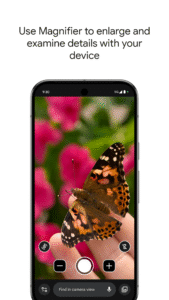

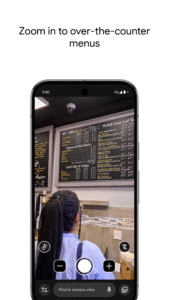
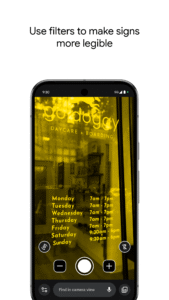
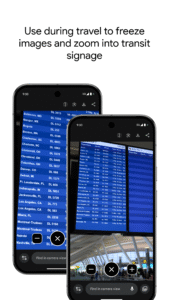
File Information
| Package Name | com.google.android.apps.accessibility.magnifier |
|---|---|
| Version Name | 2.0.0.811269537.release |
| Version Code | 7689 |
| Architecture | arm64-v8a |
| Min Android Version | Android 33 (API 35) |
| Main Activity | com.google.android.apps.accessibility.magnifier.home.HomeActivity |
| Framework | Native (Java/Kotlin) |
| File Size | 75.21 MB |
| Signature (SHA1) | A9DA9B4F9A9764D7BC0984B2055AAA3A8B65A0DE |
| File Hash (SHA256) | 3647da114e81d1ea989f2128610d7db370f63026c9dd2d072d9644eb695ceb1c |
What's New
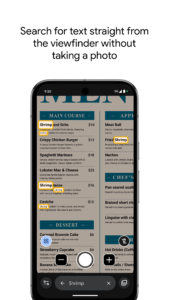
Text search using voice input:
Use voice input to easily search for text in the live view, perfect for locating grocery items or reading an address.
Use voice input to easily search for text in the live view, perfect for locating grocery items or reading an address.
App Description
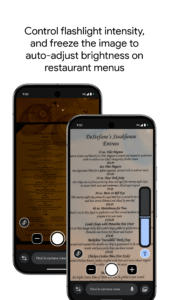
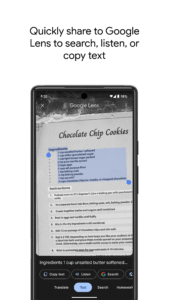
Use your camera to magnify small text, see object details, or zoom in on faraway text like street signs or restaurant menus behind a service counter. Search for words before or after you take a picture to find what you need on a menu, a departure board, or anything containing text. Apply visual effects to make low contrast text more visible. In low light environments brightness is automatically adjusted. You can also take photos and zoom in as much as you need.
Get started:
1. Download Magnifier from the Play Store.
2. (Optional) Set up Magnifier to easily open via Quick tap:
a. Open your phone's Settings app.
b. Go to System > Gestures > Quick tap.
c. Turn on Use Quick tap.
d. Choose open app. Next to "Open app," tap Settings. Then select Magnifier.
e. To open Magnifier, tap twice on the back of your phone.
Magnifier requires Pixel 5 or later model.
Get started:
1. Download Magnifier from the Play Store.
2. (Optional) Set up Magnifier to easily open via Quick tap:
a. Open your phone's Settings app.
b. Go to System > Gestures > Quick tap.
c. Turn on Use Quick tap.
d. Choose open app. Next to "Open app," tap Settings. Then select Magnifier.
e. To open Magnifier, tap twice on the back of your phone.
Magnifier requires Pixel 5 or later model.
Download Magnifier APK
Fast, free and safe download.
APK Permissions 8
- android.permission.ACCESS_NETWORK_STATE
- android.permission.CAMERA
- android.permission.GET_PACKAGE_SIZE
- android.permission.INTERNET
- android.permission.RECORD_AUDIO
- android.permission.VIBRATE
- android.permission.WAKE_LOCK
- com.google.android.providers.gsf.permission.READ_GSERVICES
APK Verified
The cryptographic signature guarantees that the file is safe to install and was not tampered with in any way.
Similar in Tools


Frequently Asked Questions about Magnifier APK
This variant is built for 64-bit ARM (most Android phones made since 2017). If your device's CPU matches, this is the smallest, fastest version to install.
Yes — the APK's signature has been cryptographically verified against the publisher's signing key. The SHA-256 hash is shown in the File Information panel so you can independently confirm the file matches the original release.
Android 33 (API level 35) or newer. Older devices will refuse the install.
Install a free app like 'CPU-Z' or 'Droid Hardware Info' from the Play Store and look at the ABI / Instruction Set row. Most phones made after 2017 are arm64-v8a; if in doubt, download the universal variant.
All variants are functionally identical — same features, same version. They differ only in which CPU architectures the native code is compiled for, and (sometimes) which screen densities the included graphics target. Pick the one that matches your device for the smallest install size, or pick 'Universal' if you're unsure.