
This is the universal build of Touchpad for Big Phone & Tab 1.5.3. It contains native libraries for every CPU architecture (arm64-v8a, armeabi-v7a, x86, x86_64), so it installs on any Android device. The trade-off is size — it's larger than per-architecture variants. Pick this one if you're unsure which CPU your phone has, or if you plan to share the APK with multiple devices.
File size: 7.2 MB • Min Android: 26 • Target Android: 35 • Version code: 53 • Framework: Native (Java/Kotlin) • Permissions: 13
Screenshots
File Information
| Package Name | com.mpointer.touchpad.bigphones |
|---|---|
| Version Name | 1.5.3 |
| Version Code | 53 |
| Architecture | Universal |
| Min Android Version | Android 26 (API 35) |
| Main Activity | com.mpointer.touchpad.bigphones.activities.ViewPagerActivity |
| Framework | Native (Java/Kotlin) |
| File Size | 7.20 MB |
| Signature (SHA1) | 3790AB779796C29CE2C0EB39E1DFDCAFEDD3E88C |
| File Hash (SHA256) | 1b1bff844821a86cd25023918f75125b93d0d06db1b9dc0078bfcfed9d6551d7 |
What's New
App improvement.
App Description
Introducing the
Touchpad
for Android phones with mouse cursor pointer on the screen.
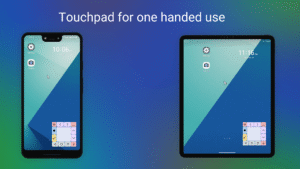
This touchpad takes small part of the screen at bottom and shows you a computer like mouse cursor pointer.
Move your finger on the touchpad to move the mouse cursor and tap on the touchpad to click on the screen at mouse cursor position.
So you can easily touch top part of the screen with only one hand.
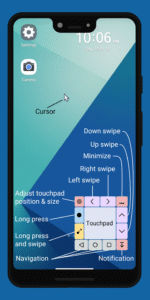
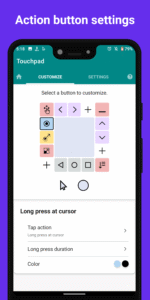
Touchpad has several action buttons which help you operate your big screen phone or tablet real quick and with only one hand.
So it is like one hand mode without losing screen content size.
You can also minimize the touchpad when you don't need to use the mouse cursor pointer.
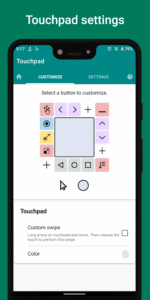
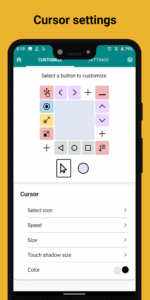
CUSTOMIZATION
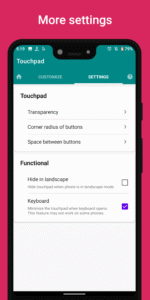
- Size and transparency of the touchpad.
- Size, color, icon and speed of the mouse cursor pointer.
- Color, corner radius and space between action buttons.
- Add, update and remove the position of action buttons around the touchpad.
ACTION BUTTONS
Perform quick and predefined actions on the screen with these action buttons around the touchpad:
•
Long press
Long press on the screen at the mouse cursor position.
You can adjust the long press duration.
•
Swipe buttons
Swipe up, down, left and right on the screen at the mouse cursor position with one tap.
You can also customize length of the swipe.
Example of use: You can one by one clear the notifications by just tapping on the swipe left or right action button.
•
Long press and swipe / drag
Long press on the start point of the swipe so that it can pick the item on the screen to drag to the end point of the swipe.
•
Notification
Open the notification panel with only one tap.
•
Navigation
Individual action buttons for Android navigation like home, back and recent apps. That means you have complete navigation bar in the touchpad.
•
Screenshot
You don't need to press volume and power keys to take a screenshot.
With just one tap on this action button, you take a screenshot.
This action button is only available from Android 9.
•
Move the touchpad
Move the whole touchpad by just dragging on this action button.
•
Resize the touchpad
Resize the touchpad from the corners.
•
Minimize the touchpad
Minimize the touchpad to small ball. You can move minimized touchpad anywhere on the screen.
You can also customize the size, color and transparency of the minimized touchpad.
•
Volume
Individual action buttons for increasing and decreasing the media volume of the phone.
•
Power button or Turn screen off
Turn off or lock the screen with one tap.
This action button is only available from Android 9.
•
Power dialog
Open power dialog screen with this action button which can be opened when you long press the power key of the phone.
This action button is only available from Android 9.
So action buttons cover all phone operating functions like navigation bar, opening notification panel, all physical key functions of the phone and taking a screenshot.
CUSTOM SWIPE
The touchpad itself can be used to swipe based on your selections of the start and end points.
To perform the custom swipe, long press on the touchpad and move the mouse cursor to the end of your desired swipe.
ACCESSIBILITY
App uses accessibility API to show the touchpad and mouse cursor and perform touch gesture on the screen.
Touchpad
for Android phones with mouse cursor pointer on the screen.
This touchpad takes small part of the screen at bottom and shows you a computer like mouse cursor pointer.
Move your finger on the touchpad to move the mouse cursor and tap on the touchpad to click on the screen at mouse cursor position.
So you can easily touch top part of the screen with only one hand.
Touchpad has several action buttons which help you operate your big screen phone or tablet real quick and with only one hand.
So it is like one hand mode without losing screen content size.
You can also minimize the touchpad when you don't need to use the mouse cursor pointer.
CUSTOMIZATION
- Size and transparency of the touchpad.
- Size, color, icon and speed of the mouse cursor pointer.
- Color, corner radius and space between action buttons.
- Add, update and remove the position of action buttons around the touchpad.
ACTION BUTTONS
Perform quick and predefined actions on the screen with these action buttons around the touchpad:
•
Long press
Long press on the screen at the mouse cursor position.
You can adjust the long press duration.
•
Swipe buttons
Swipe up, down, left and right on the screen at the mouse cursor position with one tap.
You can also customize length of the swipe.
Example of use: You can one by one clear the notifications by just tapping on the swipe left or right action button.
•
Long press and swipe / drag
Long press on the start point of the swipe so that it can pick the item on the screen to drag to the end point of the swipe.
•
Notification
Open the notification panel with only one tap.
•
Navigation
Individual action buttons for Android navigation like home, back and recent apps. That means you have complete navigation bar in the touchpad.
•
Screenshot
You don't need to press volume and power keys to take a screenshot.
With just one tap on this action button, you take a screenshot.
This action button is only available from Android 9.
•
Move the touchpad
Move the whole touchpad by just dragging on this action button.
•
Resize the touchpad
Resize the touchpad from the corners.
•
Minimize the touchpad
Minimize the touchpad to small ball. You can move minimized touchpad anywhere on the screen.
You can also customize the size, color and transparency of the minimized touchpad.
•
Volume
Individual action buttons for increasing and decreasing the media volume of the phone.
•
Power button or Turn screen off
Turn off or lock the screen with one tap.
This action button is only available from Android 9.
•
Power dialog
Open power dialog screen with this action button which can be opened when you long press the power key of the phone.
This action button is only available from Android 9.
So action buttons cover all phone operating functions like navigation bar, opening notification panel, all physical key functions of the phone and taking a screenshot.
CUSTOM SWIPE
The touchpad itself can be used to swipe based on your selections of the start and end points.
To perform the custom swipe, long press on the touchpad and move the mouse cursor to the end of your desired swipe.
ACCESSIBILITY
App uses accessibility API to show the touchpad and mouse cursor and perform touch gesture on the screen.
Download Touchpad for Big Phone & Tab APK
Fast, free and safe download.
APK Permissions 13
- android.permission.ACCESS_ADSERVICES_AD_ID
- android.permission.ACCESS_ADSERVICES_ATTRIBUTION
- android.permission.ACCESS_ADSERVICES_TOPICS
- android.permission.ACCESS_NETWORK_STATE
- android.permission.FOREGROUND_SERVICE
- android.permission.FOREGROUND_SERVICE_SPECIAL_USE
- android.permission.INTERNET
- android.permission.POST_NOTIFICATIONS
- android.permission.WAKE_LOCK
- com.android.vending.BILLING
- com.google.android.finsky.permission.BIND_GET_INSTALL_REFERRER_SERVICE
- com.google.android.gms.permission.AD_ID
- com.mpointer.touchpad.bigphones.DYNAMIC_RECEIVER_NOT_EXPORTED_PERMISSION
APK Verified
The cryptographic signature guarantees that the file is safe to install and was not tampered with in any way.


Frequently Asked Questions about Touchpad for Big Phone & Tab APK
This is the universal variant — a single APK that contains native libraries for every CPU architecture. It installs on any Android device but is larger than per-architecture variants.
Yes — the APK's signature has been cryptographically verified against the publisher's signing key. The SHA-256 hash is shown in the File Information panel so you can independently confirm the file matches the original release.
Android 26 (API level 35) or newer. Older devices will refuse the install.
Install a free app like 'CPU-Z' or 'Droid Hardware Info' from the Play Store and look at the ABI / Instruction Set row. Most phones made after 2017 are arm64-v8a; if in doubt, download the universal variant.
All variants are functionally identical — same features, same version. They differ only in which CPU architectures the native code is compiled for, and (sometimes) which screen densities the included graphics target. Pick the one that matches your device for the smallest install size, or pick 'Universal' if you're unsure.