
Screenshots
File Information
| Package Name | com.azure.authenticator |
|---|---|
| Version Name | 6.2511.7533 |
| Version Code | 202575331 |
| Architecture | armeabi-v7a |
| Min Android Version | Android 26 (API 35) |
| Main Activity | com.azure.authenticator.ui.LaunchActivity |
| Framework | Native (Java/Kotlin) |
| File Size | 52.62 MB |
| Signature (SHA1) | 868D38D12DDF7D9926C6AB50AD2C294D53A7F6BD |
| File Hash (SHA256) | cd27296793c3e94a37fdb7fa1aa8818362813c157be02bdacb95b3c727916c7b |
What's New
From version
6.2509.6046
:
We're always working on new features, bug fixes, and performance improvements. Make sure you stay updated with the latest version for the best authentication experience.
6.2509.6046
:
We're always working on new features, bug fixes, and performance improvements. Make sure you stay updated with the latest version for the best authentication experience.
App Description
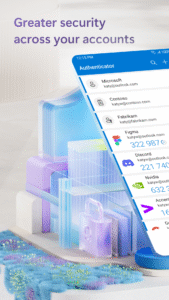
Use Microsoft Authenticator for easy, secure sign-ins for all your online accounts using multi-factor authentication, passwordless, or password. You also have additional account management options for your Microsoft personal, work or school accounts.
Getting started with multi-factor authentication
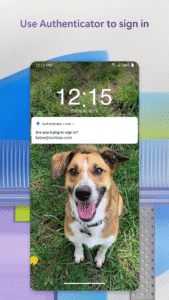
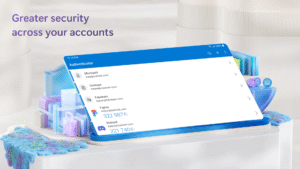
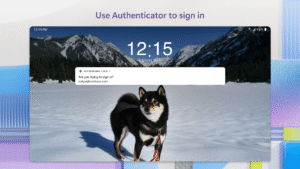
Multi factor authentication (MFA) or two factor authentication (2FA) provides a second layer of security. When logging in with multi-factor authentication, you’ll enter your password, and then you’ll be asked for an additional way to prove it’s really you. Either approve the notification sent to the Microsoft Authenticator, or enter the one-time password (OTP) generated by the app. The one-time passwords (OTP codes) have a 30 second timer counting down. This timer is so you never have to use the same time-based one-time password (TOTP) twice and you don’t have to remember the number. The one-time password (OTP) doesn’t require you to be connected to a network, and it won’t drain your battery. You can add multiple accounts to your app, including non-Microsoft accounts like Facebook, Amazon, Dropbox, Google, LinkedIn, GitHub, and more.
Getting started with passwordless
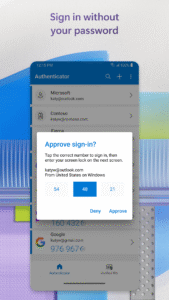
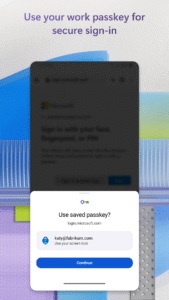
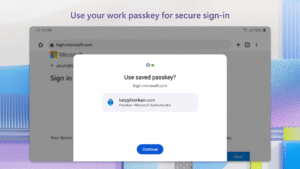
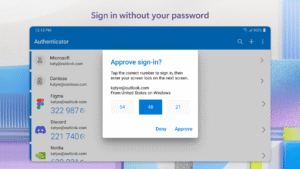
Use your phone, not your password, to log into your Microsoft account. Just enter your username, then approve the notification sent to your phone. Your fingerprint, face ID, or PIN will provide a second layer of security in this two-step verification process. After you’ve signed in with two factor authentication (2FA), you’ll have access to all your Microsoft products and services, such as Outlook, OneDrive, Office, and more.
Microsoft personal, work or school accounts
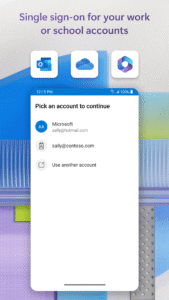
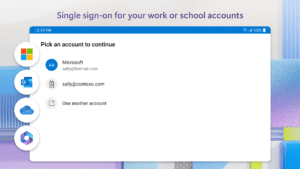
Sometimes your work or school might ask you to install the Microsoft Authenticator when accessing certain files, emails, or apps. You will need to register your device to your organization through the app and add your work or school account. Microsoft Authenticator also supports cert-based authentication by issuing a certificate on your device. This will let your organization know that the sign-in request is coming from a trusted device and help you seamlessly and securely access additional Microsoft apps and services without needing to log into each. Because Microsoft Authenticator supports single sign-on, once you have proven your identity once, you will not need to log in again to other Microsoft apps on your device.
Optional Access permissions:
Microsoft Authenticator includes the following optional access permissions. All these require user consent. If you choose to not grant these optional access permissions, you can still use Microsoft Authenticator for other services that do not require such permission. For more information see
aka.ms/authappfaq
Accessibility Service: Used to optionally support features on more apps and sites.
Location: Sometimes your organization wants to know your location before allowing you to access certain resources. The app will request this permission only if your organization has a policy requiring location.
Camera: Used to scan QR codes when you add a work, school, or non-Microsoft account.
Read the contents of your storage: This permission is only used when you report a technical problem through the app settings. Some information from your storage is collected to diagnose the issue.
Getting started with multi-factor authentication
Multi factor authentication (MFA) or two factor authentication (2FA) provides a second layer of security. When logging in with multi-factor authentication, you’ll enter your password, and then you’ll be asked for an additional way to prove it’s really you. Either approve the notification sent to the Microsoft Authenticator, or enter the one-time password (OTP) generated by the app. The one-time passwords (OTP codes) have a 30 second timer counting down. This timer is so you never have to use the same time-based one-time password (TOTP) twice and you don’t have to remember the number. The one-time password (OTP) doesn’t require you to be connected to a network, and it won’t drain your battery. You can add multiple accounts to your app, including non-Microsoft accounts like Facebook, Amazon, Dropbox, Google, LinkedIn, GitHub, and more.
Getting started with passwordless
Use your phone, not your password, to log into your Microsoft account. Just enter your username, then approve the notification sent to your phone. Your fingerprint, face ID, or PIN will provide a second layer of security in this two-step verification process. After you’ve signed in with two factor authentication (2FA), you’ll have access to all your Microsoft products and services, such as Outlook, OneDrive, Office, and more.
Microsoft personal, work or school accounts
Sometimes your work or school might ask you to install the Microsoft Authenticator when accessing certain files, emails, or apps. You will need to register your device to your organization through the app and add your work or school account. Microsoft Authenticator also supports cert-based authentication by issuing a certificate on your device. This will let your organization know that the sign-in request is coming from a trusted device and help you seamlessly and securely access additional Microsoft apps and services without needing to log into each. Because Microsoft Authenticator supports single sign-on, once you have proven your identity once, you will not need to log in again to other Microsoft apps on your device.
Optional Access permissions:
Microsoft Authenticator includes the following optional access permissions. All these require user consent. If you choose to not grant these optional access permissions, you can still use Microsoft Authenticator for other services that do not require such permission. For more information see
aka.ms/authappfaq
Accessibility Service: Used to optionally support features on more apps and sites.
Location: Sometimes your organization wants to know your location before allowing you to access certain resources. The app will request this permission only if your organization has a policy requiring location.
Camera: Used to scan QR codes when you add a work, school, or non-Microsoft account.
Read the contents of your storage: This permission is only used when you report a technical problem through the app settings. Some information from your storage is collected to diagnose the issue.
Download Microsoft Authenticator APK
Fast, free and safe download.
APK Permissions 32
- android.permission.ACCESS_BACKGROUND_LOCATION
- android.permission.ACCESS_COARSE_LOCATION
- android.permission.ACCESS_FINE_LOCATION
- android.permission.ACCESS_NETWORK_STATE
- android.permission.AUTHENTICATE_ACCOUNTS
- android.permission.CAMERA
- android.permission.FOREGROUND_SERVICE
- android.permission.FOREGROUND_SERVICE_LOCATION
- android.permission.INTERNET
- android.permission.KILL_BACKGROUND_PROCESSES
- android.permission.MANAGE_ACCOUNTS
- android.permission.NFC
- android.permission.POST_NOTIFICATIONS
- android.permission.RECEIVE_BOOT_COMPLETED
- android.permission.REQUEST_IGNORE_BATTERY_OPTIMIZATIONS
- android.permission.sec.ENTERPRISE_DEVICE_ADMIN
- android.permission.sec.MDM_CERTIFICATE
- android.permission.sec.MDM_SECURITY
- android.permission.SYSTEM_ALERT_WINDOW
- android.permission.USE_BIOMETRIC
- android.permission.USE_CREDENTIALS
- android.permission.USE_FINGERPRINT
- android.permission.VIBRATE
- android.permission.WAKE_LOCK
- com.azure.authenticator.DYNAMIC_RECEIVER_NOT_EXPORTED_PERMISSION
- com.azure.authenticator.knox.SUPPORT_PERMISSION
- com.google.android.c2dm.permission.RECEIVE
- com.google.android.finsky.permission.BIND_GET_INSTALL_REFERRER_SERVICE
- com.samsung.android.knox.permission.KNOX_CERT_PROVISIONING
- com.samsung.android.knox.permission.KNOX_CERTIFICATE
- com.samsung.android.knox.permission.KNOX_ENTERPRISE_DEVICE_ADMIN
- com.samsung.android.knox.permission.KNOX_SECURITY
APK Verified
The cryptographic signature guarantees that the file is safe to install and was not tampered with in any way.


